

How to use Owoji.
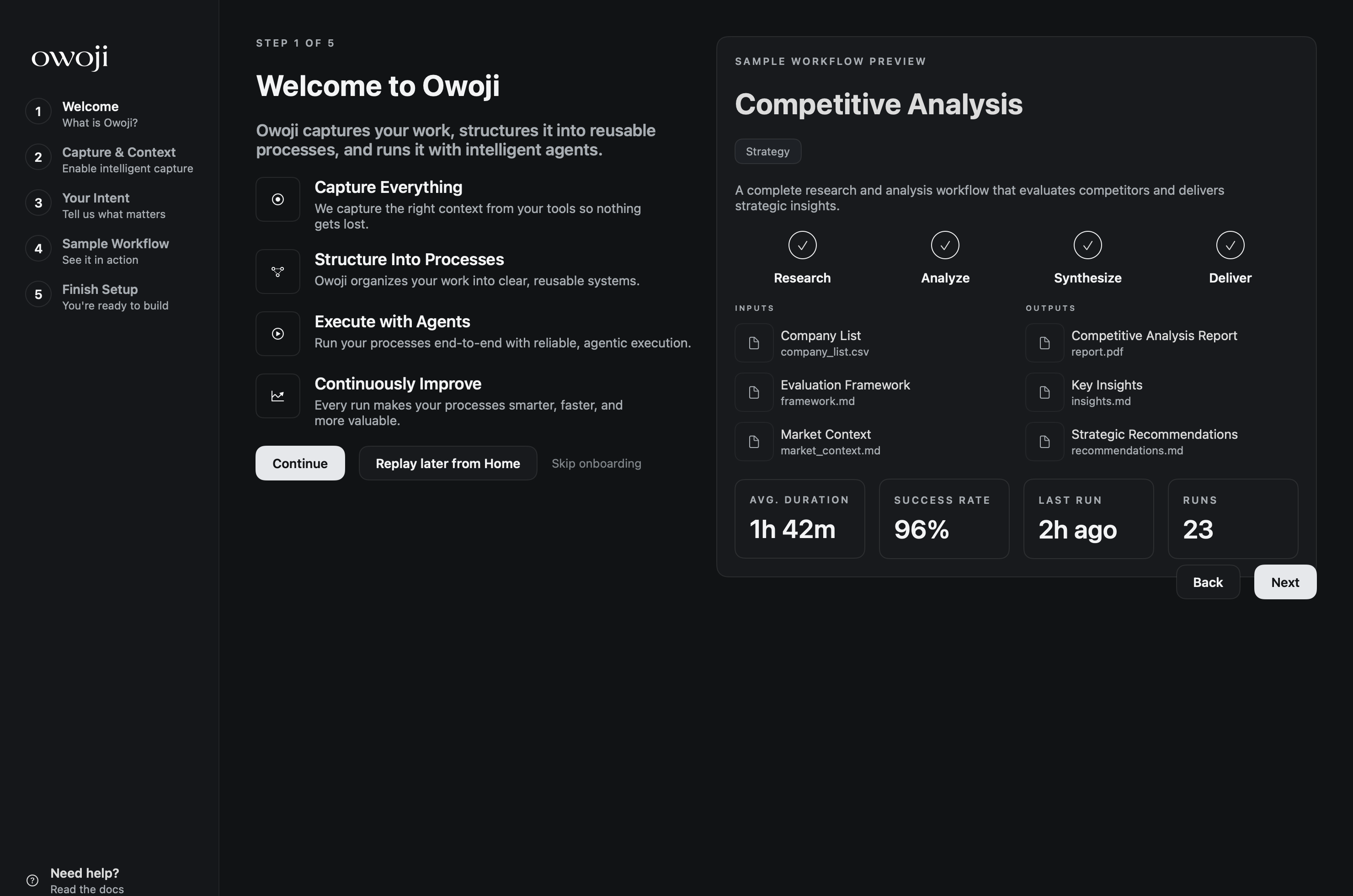
Owoji captures work, structures it into reusable workflows, and runs those workflows as agentic systems with artifacts and proof.
Getting started
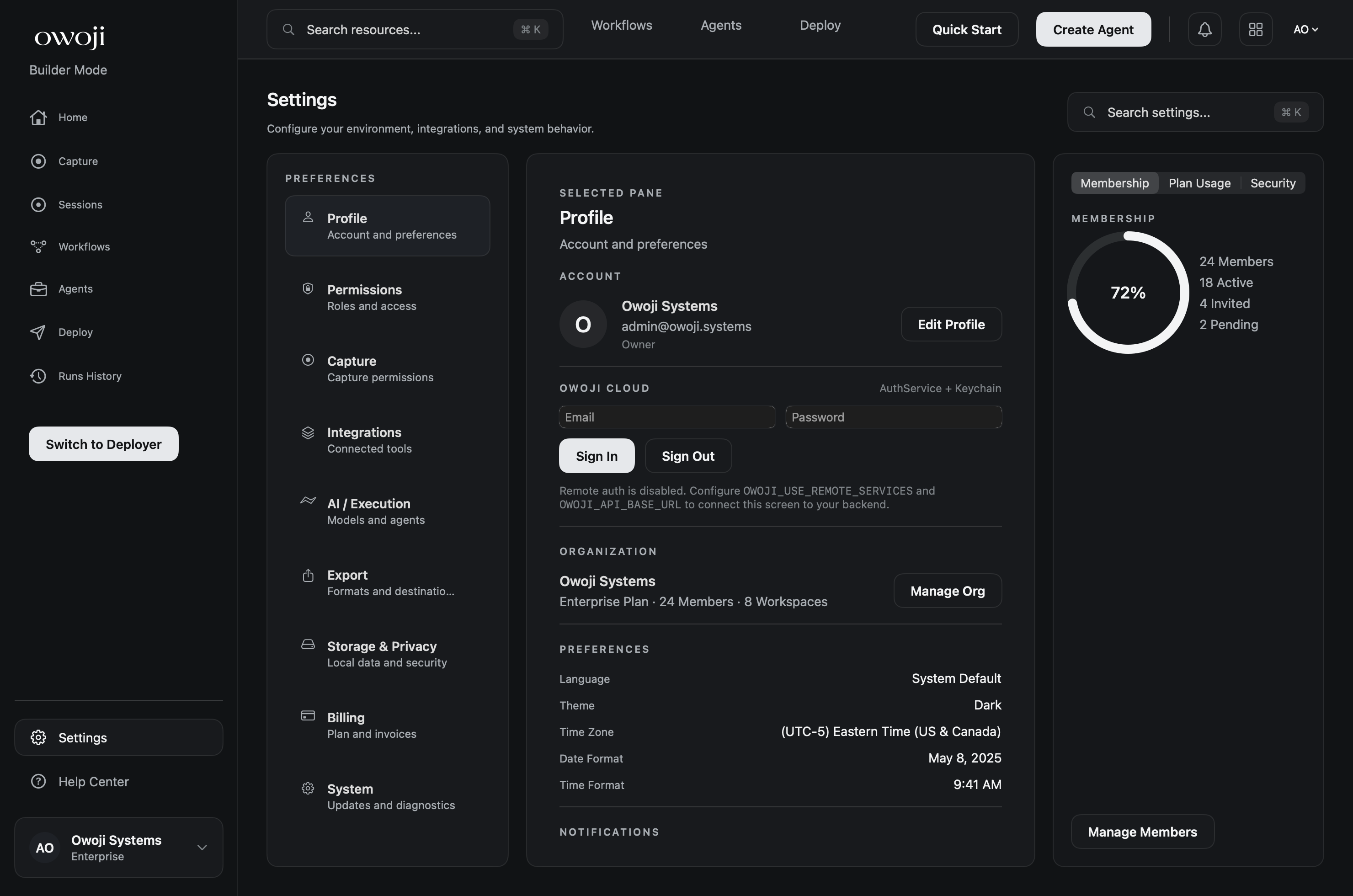
When you first open Owoji, complete onboarding and confirm your capture permissions. If capture is blocked, Settings will tell you exactly what is missing.
- Open Owoji and complete onboarding.
- Go to Settings → System warnings.
- Enable Screen Recording if capture is blocked.
- Use the top search field to open the Command Palette.
Core concepts
Owoji uses a few objects across the product. You will see these names repeated in the UI and in run results.
Capture a session
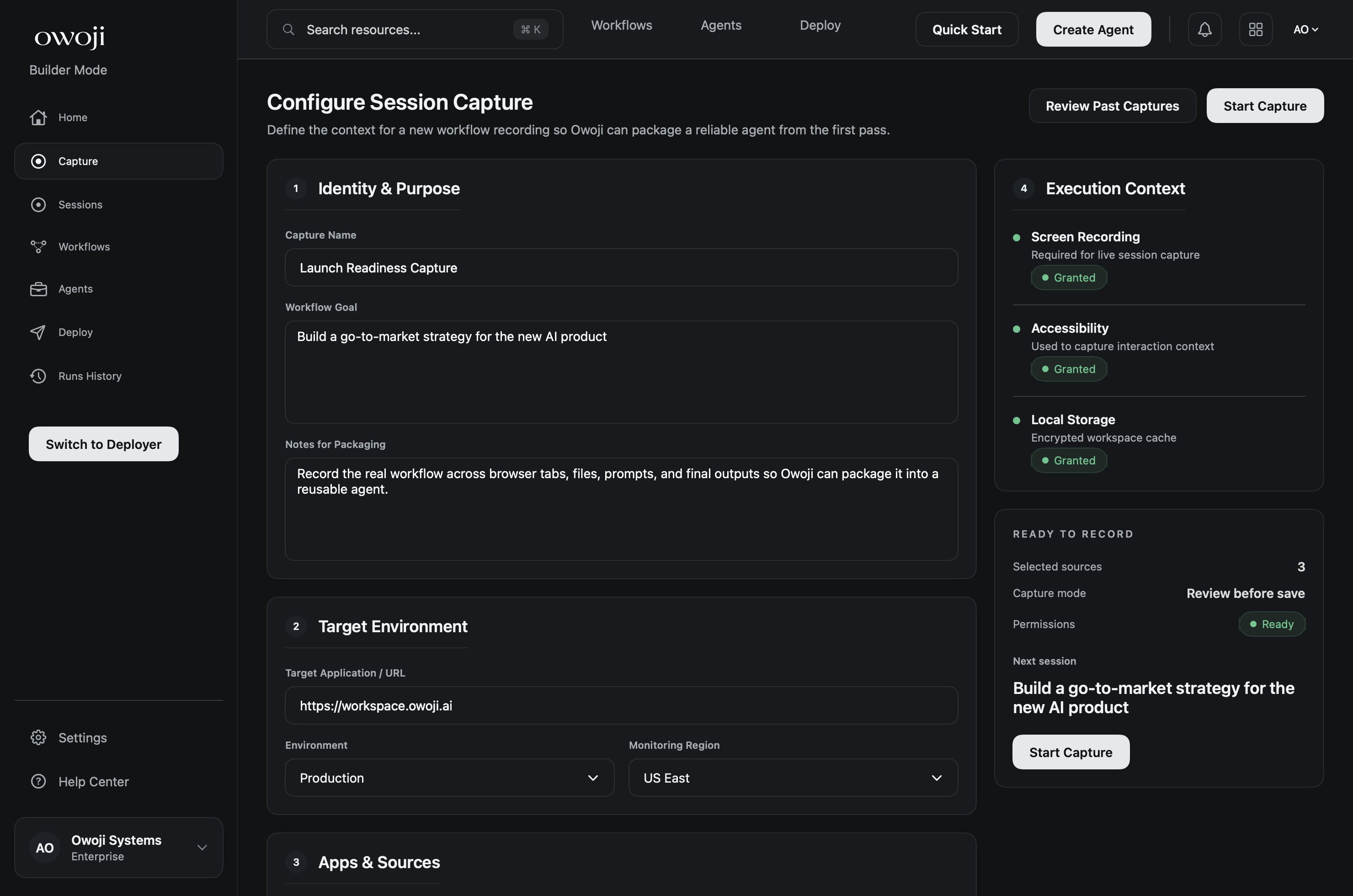
Sessions are the raw material. Start capture when you begin real work. Set intent so the system can interpret what matters.
- Open Capture from the sidebar.
- Set capturing intent to describe the goal of the workflow.
- Work normally across your tools while Owoji captures context.
- End capture when the workflow completes.
Review the raw timeline
After capture, review the session timeline. Use filters to find important transitions, decisions, and artifacts.
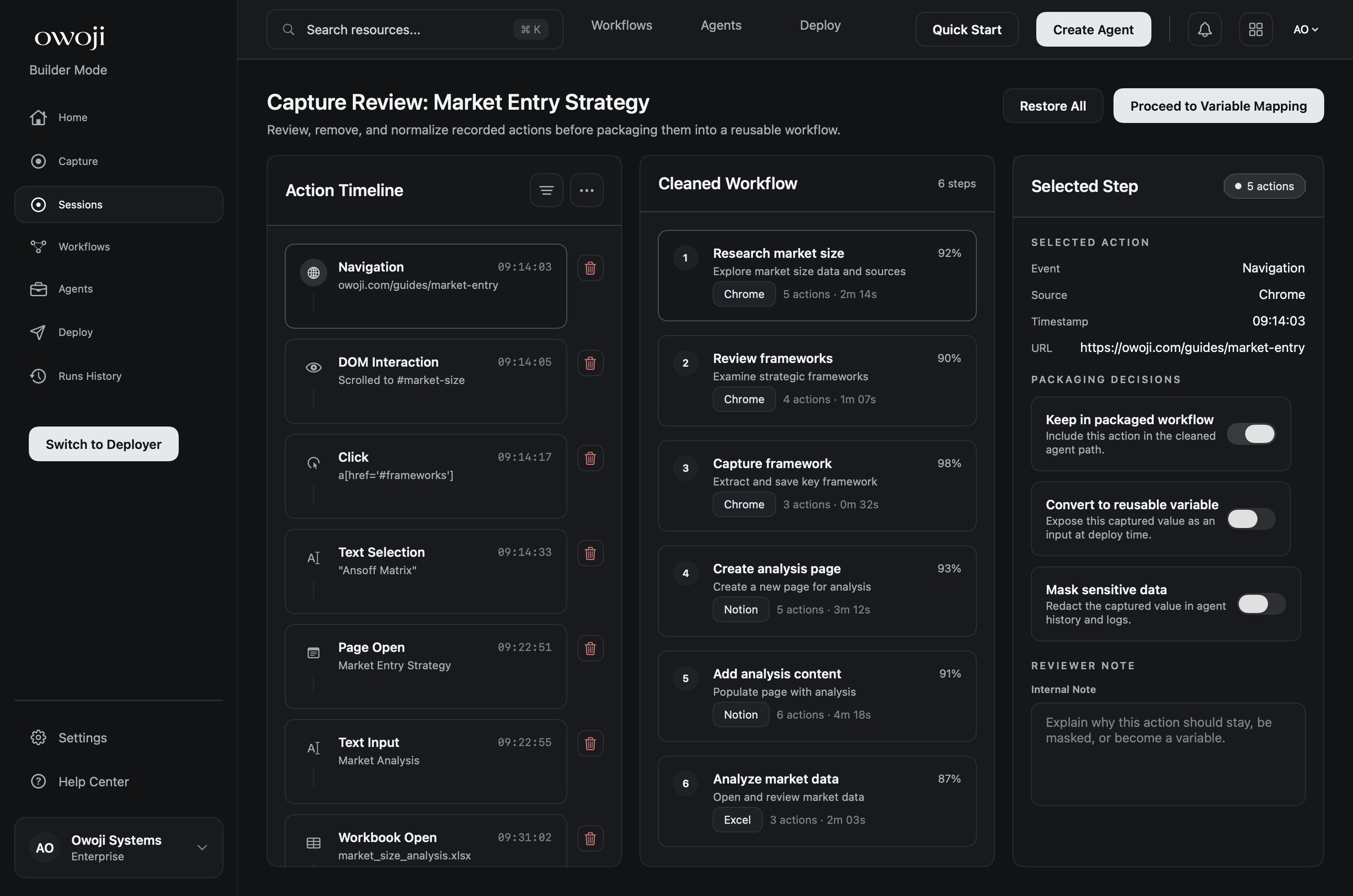
- Key navigation and decision points
- Notes and tags you want preserved
- Artifacts that represent “proof” of the work
- Context that should be an input for future runs
Structure into a workflow
Structure converts raw events into editable clusters and steps. This is where you decide what is reusable.
Create an agent template
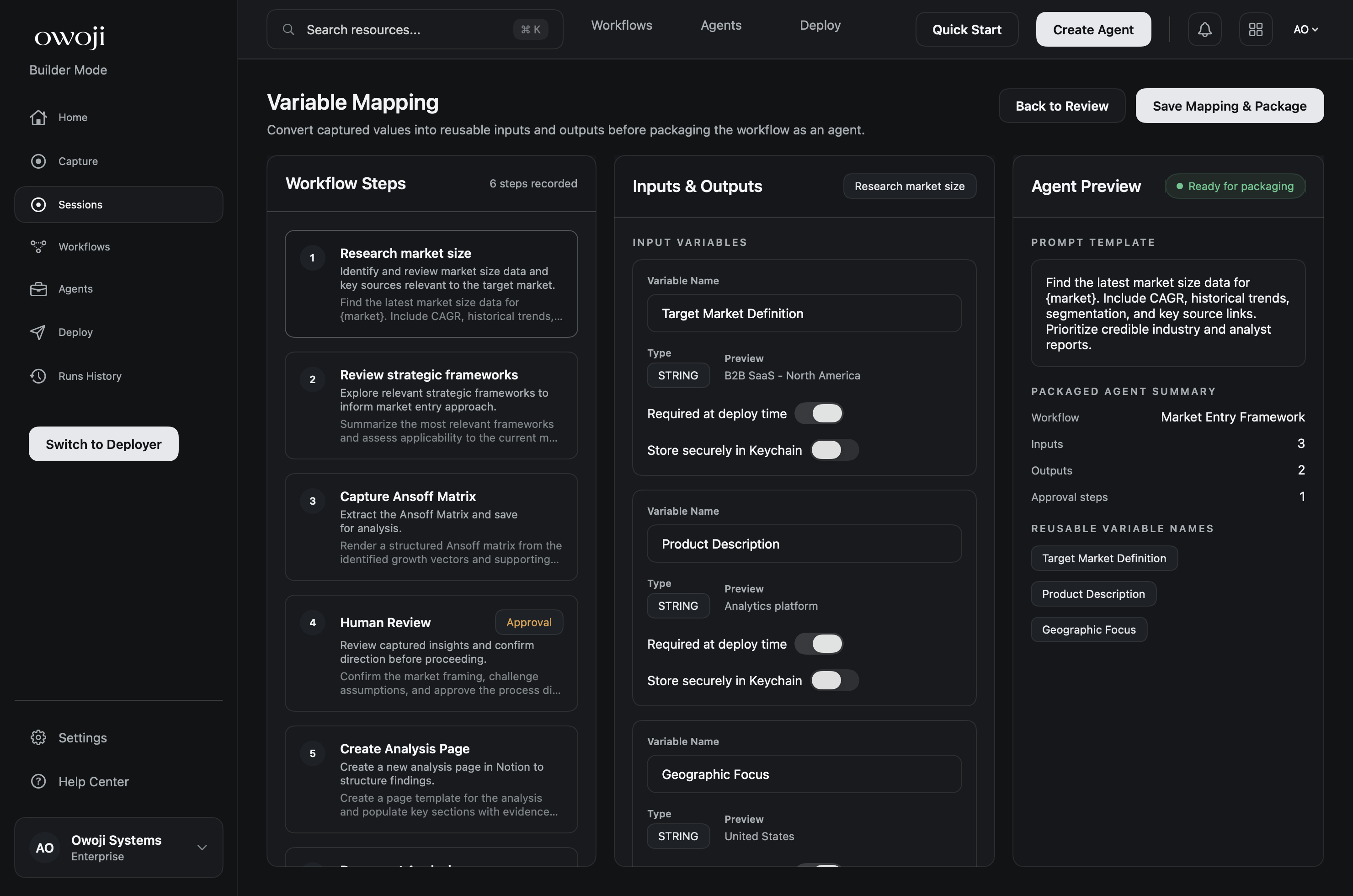
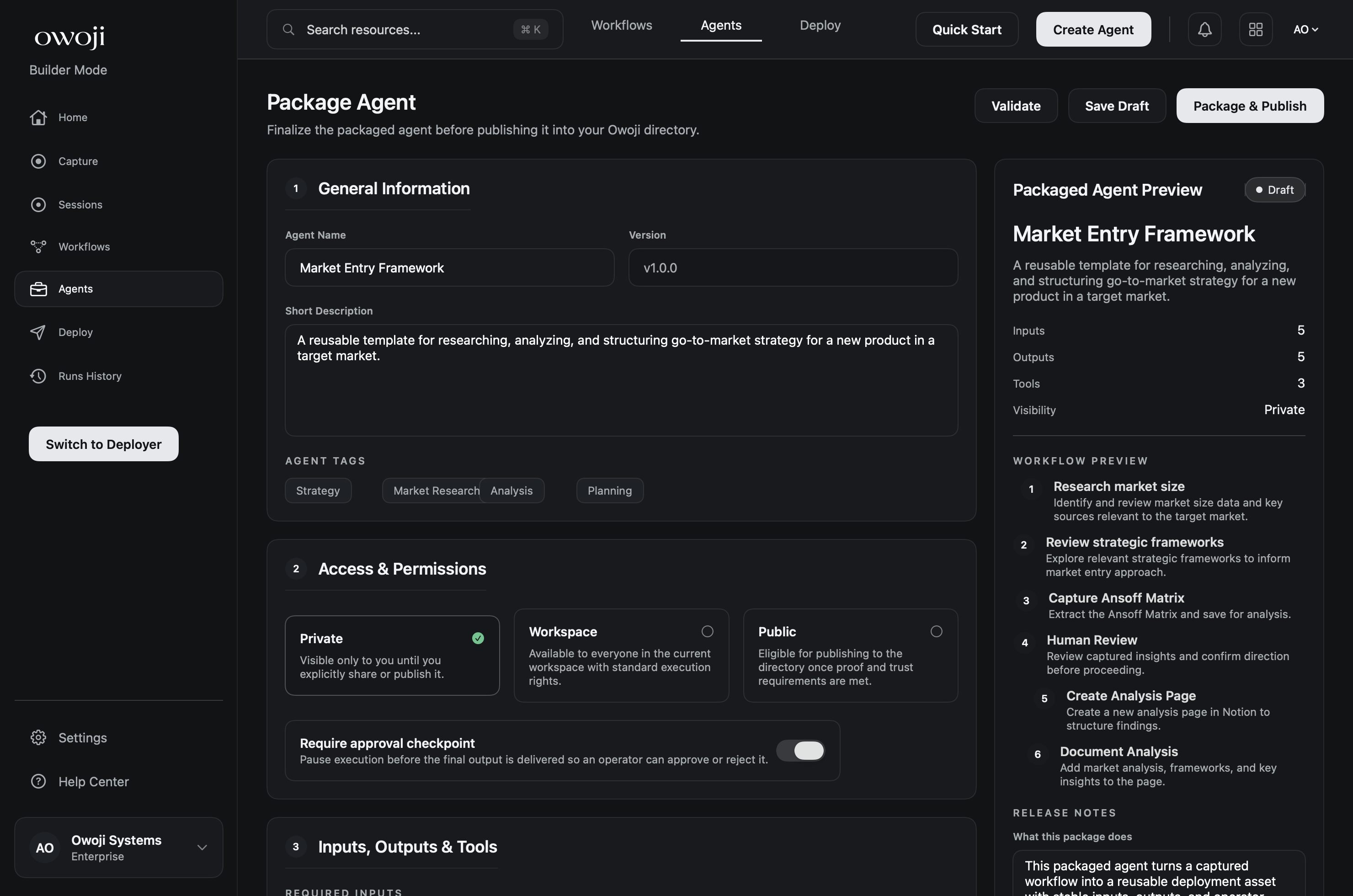
Turn a workflow into a reusable agent: define inputs, outputs, checkpoints, and permissions. Version the template so changes stay comparable across runs.
Run and evaluate
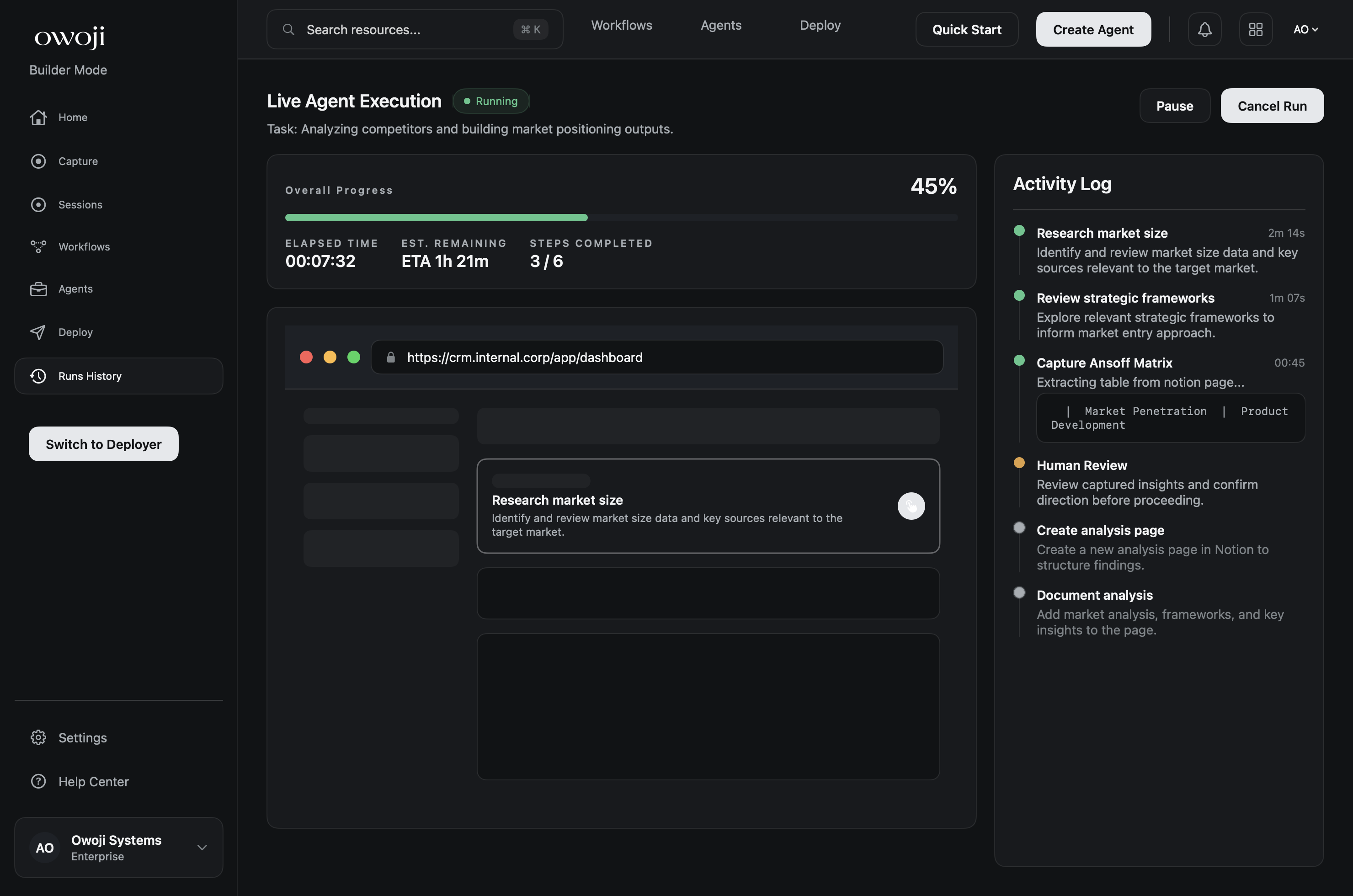
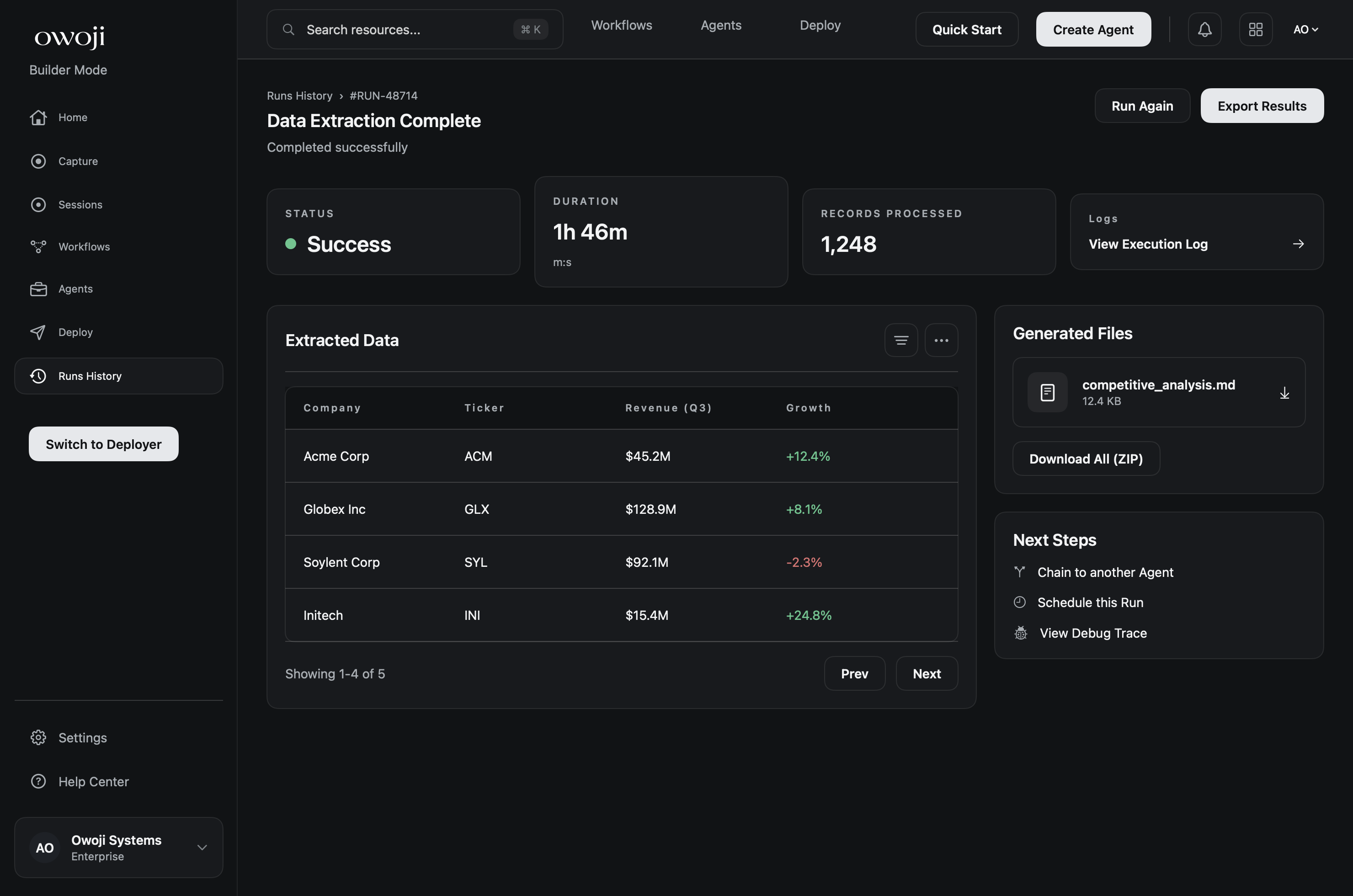
Runs are where systems prove themselves. Watch progress, review outputs, and compare results across versions.
Artifacts and versions
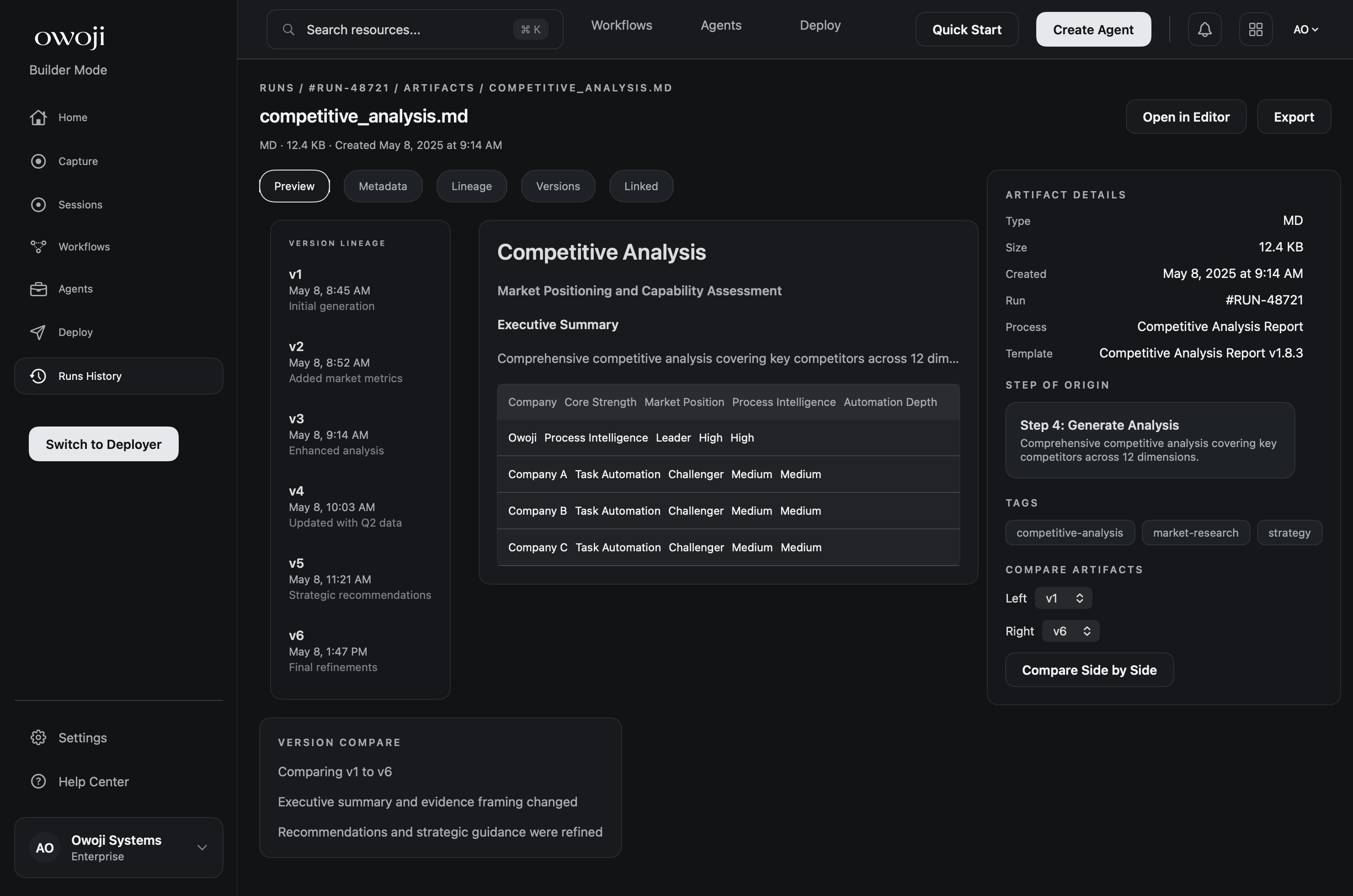
Artifacts are the durable outputs of a run. Use versions and lineage to understand how an output was produced and how it changed over time.
Deploy and community
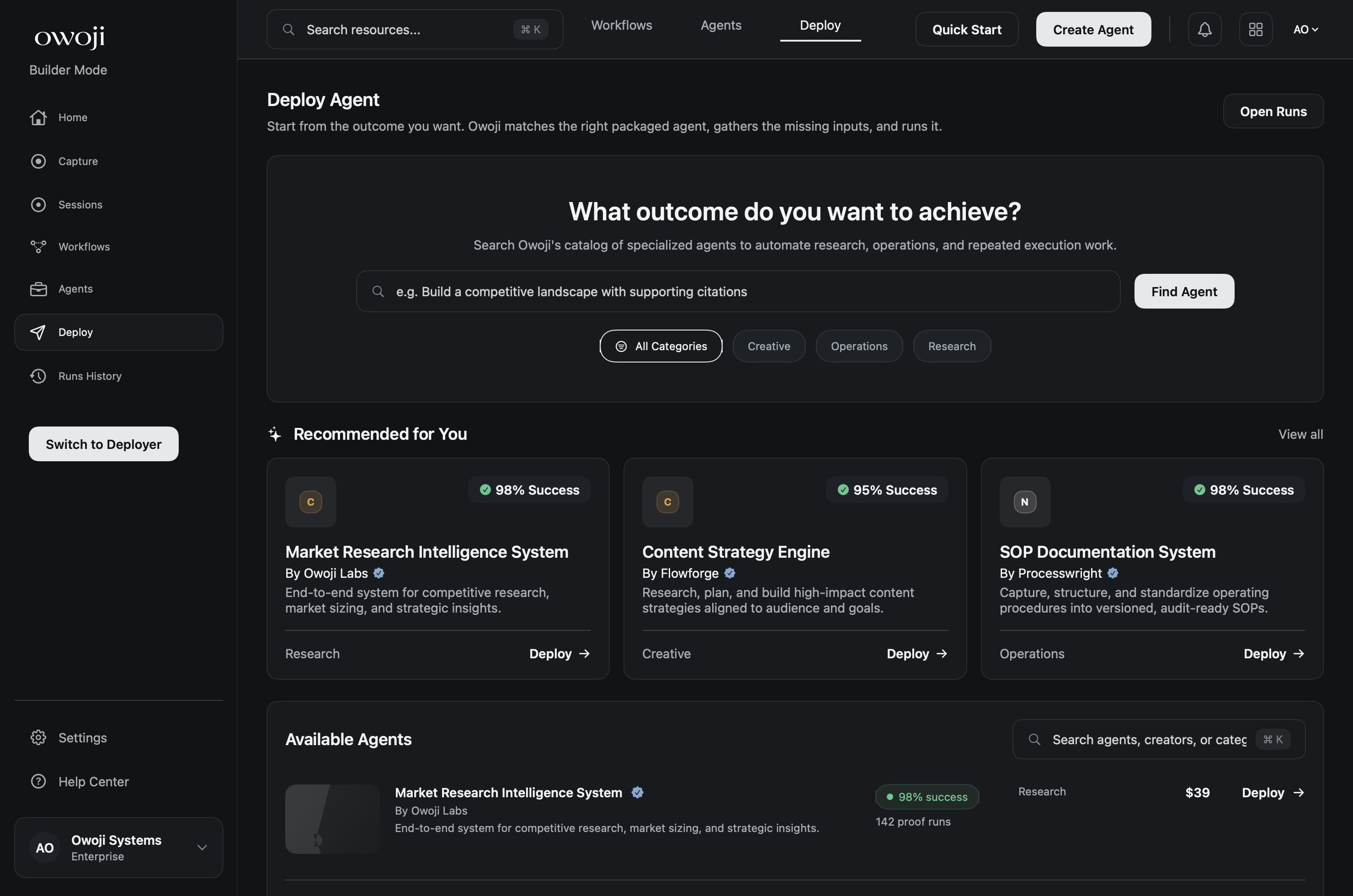
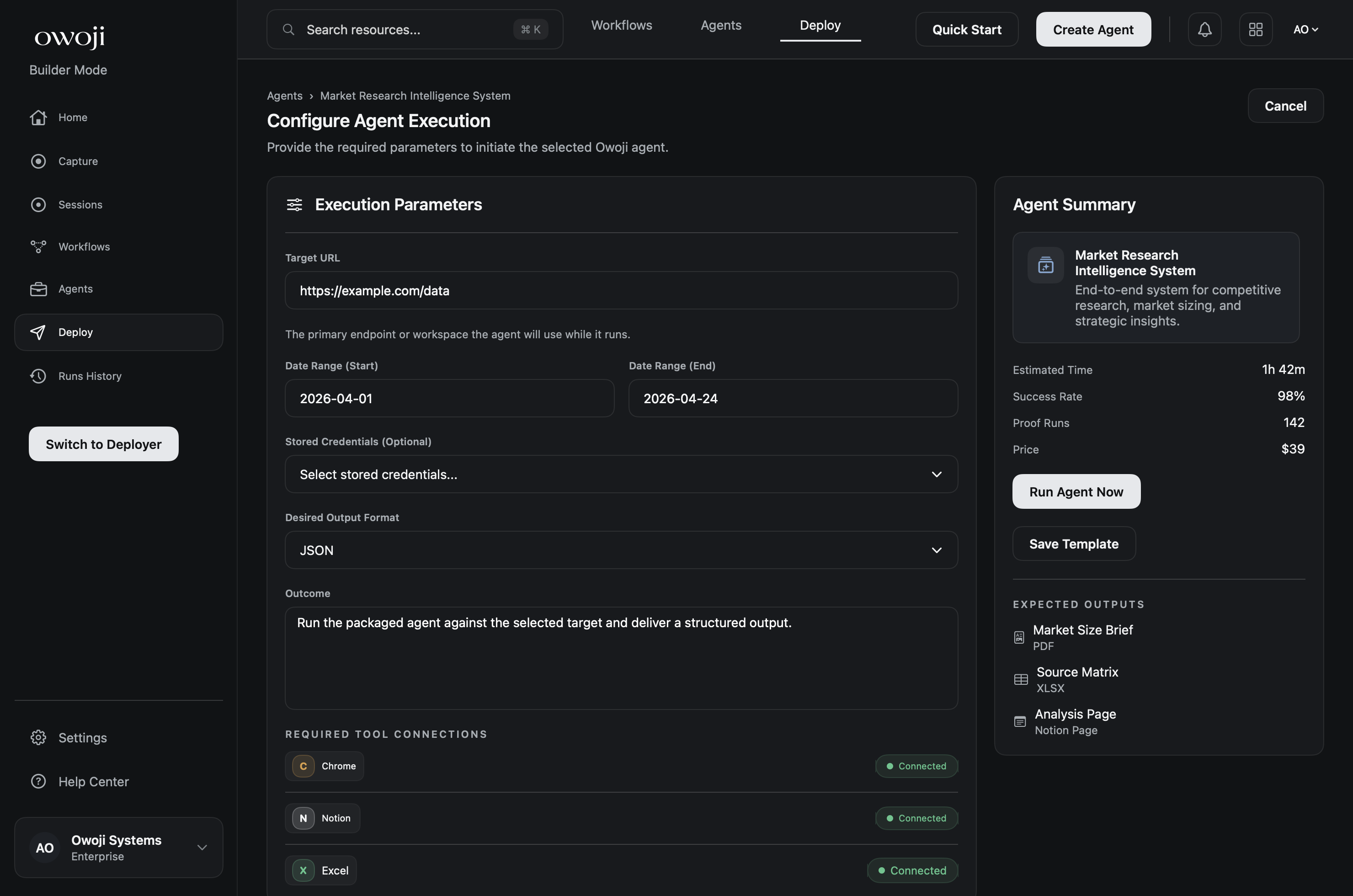
Use Deploy to find workflows that already work. Review proof runs, required tools, and outcomes before you unlock or fork.
Permissions and settings
Capture relies on macOS permissions. If capture is blocked, open Settings and resolve system warnings first.
Keyboard shortcuts
Owoji is designed for speed. Use the Command Palette and direct navigation shortcuts to move across the app.